

Getting Started
API Keys
Webhooks
Delivery & Channels
Billing & Plans
Authentication
All API endpoints require an API key passed in the Authorization header.
Authorization: Bearer rm_your_api_key
Generate API keys from your dashboard.
Rate Limiting
60 requests per minute per API key. Exceeding this limit returns 429 Too Many Requests with a Retry-After header.
Plan Limits
Each plan enforces two independent monthly limits. Both must have capacity for a reminder to be created.
| Plan | Reminders/mo | Recipients/mo | Telegram recipients/reminder |
|---|---|---|---|
| Free | 50 | 100 | 10 |
| Starter | 10,000 | 20,000 | 50 |
| Pro | 50,000 | 100,000 | 100 |
| Enterprise | Unlimited | Unlimited | Unlimited |
Exceeding either limit returns 429 Too Many Requests. View pricing.
Channel access: Free plans can use webhook, Slack, Discord, Telegram, and OpenClaw. Email and Google Calendar require a paid plan (Starter+). Attempting to use a restricted channel returns 403 Forbidden.
Per-channel recipient limits: Email allows up to 100 recipients per reminder. Webhook, Slack, Discord, OpenClaw, and Google Calendar allow 1 recipient per reminder. Telegram recipient limits are plan-based (see table above).
Endpoints
/api/remindCreate a new reminder.
Request body
{
  "title": "Follow up with client",
  "body": "Remember to send the proposal",
  "recipients": ["alice@example.com", "bob@example.com"],
  "channel": "email",
  "fire_at": "2027-01-15T09:00:00Z",
  "repeat": "daily",
  "timezone": "America/New_York",
  "metadata": { "project_id": "abc123" }
}
Fields
| title | Required. Max 200 chars. |
| recipients | Required. Array of delivery addresses. Email addresses for the email channel; webhook URLs for webhook, slack, discord, or openclaw channels; bot:<uuid>:<chat_id> for the telegram channel (find your bot UUID in Settings → Telegram Bots); ["google"] for google_calendar. Per-plan recipient cap applies. |
| fire_at | Required. ISO 8601 datetime, must be in the future. |
| channel | Optional. "email" (default), "webhook", "slack", "discord", "telegram", "openclaw", or "google_calendar". Note: email and google_calendar require a paid plan (Starter+). |
| body | Optional. Max 2000 chars. |
| repeat | Optional. "daily", "weekly", "monthly", or "custom". |
| cron_expression | Required when repeat is "custom". Cron expression (e.g. "0 9 * * 1" for every Monday at 9 AM). Max 100 chars. |
| timezone | Optional. IANA timezone (default: UTC). |
| metadata | Optional. Arbitrary JSON object. Max 10 KB when serialized. |
For Slack and Discord channels, recipients must be valid incoming webhook URLs. Slack URLs start with https://hooks.slack.com/services/, Discord URLs start with https://discord.com/api/webhooks/.
For the telegram channel, each recipient must use the format bot:<uuid>:<chat_id> where uuid is your bot's ID from Settings → Telegram Bots and chat_id is the numeric Telegram chat ID.
For the google_calendar channel, recipients must be exactly ["google"]. Connect your Google account in Settings → Google Calendar first.
/api/remindersList reminders for the authenticated user.
Query parameters
| status | Filter by status: pending, processing, delivered, failed, cancelled. |
| limit | Max results (default 50, max 100). |
| offset | Pagination offset (default 0). |
Example
curl https://pingfyr.com/api/reminders?status=pending&limit=10 \
  -H "Authorization: Bearer rm_your_api_key"
Response
{
  "data": [
    {
      "id": "uuid-here",
      "title": "Follow up with client",
      "body": "Remember to send the proposal",
      "channel_type": "email",
      "recipients": ["alice@example.com"],
      "fire_at": "2027-01-15T09:00:00Z",
      "status": "pending",
      "repeat": "daily",
      "timezone": "America/New_York",
      "created_at": "2026-12-01T10:00:00Z",
      "delivery_summary": {
        "success": 0,
        "failure": 0,
        "suppressed": 0,
        "rate_limited": 0
      }
    }
  ],
  "count": 1
}/api/remind/:idUpdate a pending reminder.
Request body (all fields optional)
{
  "title": "Updated title",
  "fire_at": "2027-01-20T10:00:00Z"
}
Only pending reminders can be updated. Returns 409 if the reminder is not pending.
/api/remind/:idCancel a pending reminder.
curl -X DELETE https://pingfyr.com/api/remind/uuid-here \
  -H "Authorization: Bearer rm_your_api_key"
Sets status to "cancelled". Only pending reminders can be cancelled.
Error Codes
| Status | Meaning |
|---|---|
| 400 | Validation error — check the details array |
| 401 | Missing or invalid API key |
| 403 | Channel not available on your plan (e.g. email or google_calendar on Free), or SMTP not configured for email channel |
| 404 | Reminder not found |
| 409 | Conflict — reminder is not in a modifiable state |
| 429 | Rate limit (60 req/min per key) or monthly usage limit exceeded |
| 500 | Internal server error |
MCP Server
Connect your AI assistant to Pingfyr via MCP. Manage reminders through natural conversation.
One API call. Seven channels. Your reminders fire automatically — no external cron, no polling, no babysitting.
Available as a local npm package (@pingfyr/mcp) or as a hosted server at mcp.pingfyr.com — no local install required.
Local Setup
Option 1 — run the MCP server as a local process using stdio transport. Requires Node.js 18+. Get your API key from the dashboard.
Install globally via npm:
npm install -g @pingfyr/mcp
Or run without installing:
npx @pingfyr/mcp
Add to your MCP client config:
{
  "mcpServers": {
    "pingfyr": {
      "command": "pingfyr-mcp",
      "env": {
        "PINGFYR_API_KEY": "rm_your_api_key"
      }
    }
  }
}
Environment variables:
| Variable | Required | Description |
|---|---|---|
| PINGFYR_API_KEY | Yes | Your Pingfyr API key (starts with rm_) |
| PINGFYR_API_URL | No | API base URL (default: https://pingfyr.com) |
Hosted Setup
Option 2 — no install required. Connect directly to mcp.pingfyr.com using HTTP transport. No Node.js needed. Your API key is sent as a Bearer token per request.
Add to your MCP client config:
{
  "mcpServers": {
    "pingfyr": {
      "type": "http",
      "url": "https://mcp.pingfyr.com",
      "headers": {
        "Authorization": "Bearer rm_your_api_key"
      }
    }
  }
}
HTTP transport is supported by Claude Code and Cursor. Claude Desktop requires the local (stdio) option above.
Available Tools
The MCP server exposes four tools your AI assistant can call:
| Tool | Description |
|---|---|
| create_reminder | Schedule a new reminder. Accepts title, fire_at, channel, recipients, body, repeat, timezone, metadata. |
| list_reminders | List reminders with optional status filter (pending, delivered, failed, cancelled) and pagination. |
| update_reminder | Update a pending reminder's title, body, fire_at, or other fields. |
| cancel_reminder | Cancel a pending reminder by ID. |
Examples
Once configured, your AI assistant can use natural language to schedule reminders. Here are example tool call payloads:
Email reminder to multiple recipients:
{
  "title": "Project deadline reminder",
  "fire_at": "2027-01-15T08:00:00Z",
  "channel": "email",
  "recipients": ["alice@example.com", "bob@example.com"]
}
Weekly Slack reminder:
{
  "title": "Weekly team sync reminder",
  "fire_at": "2027-01-10T09:00:00Z",
  "channel": "slack",
  "recipients": ["https://hooks.slack.com/services/T.../B.../xxx"],
  "repeat": "weekly",
  "timezone": "America/New_York"
}
Webhook to wake an agent daily:
{
  "title": "Check for new orders",
  "fire_at": "2027-01-10T10:00:00Z",
  "channel": "webhook",
  "recipients": ["https://your-agent.example.com/webhook"],
  "repeat": "daily"
}
Discord notification:
{
  "title": "Deploy notification",
  "fire_at": "2027-01-10T17:00:00Z",
  "channel": "discord",
  "recipients": ["https://discord.com/api/webhooks/xxx/yyy"]
}
Telegram bot notification:
{
  "title": "Daily standup reminder",
  "fire_at": "2027-01-10T09:00:00Z",
  "channel": "telegram",
  "recipients": ["bot:your-bot-uuid:your-chat-id"],
  "repeat": "daily"
}
Google Calendar event:
{
  "title": "Sprint planning",
  "fire_at": "2027-01-13T10:00:00Z",
  "channel": "google_calendar",
  "recipients": ["google"],
  "timezone": "Europe/Berlin"
}
Google Calendar requires a connected Google account. Set it up in Settings → Google Calendar. The recipient must always be "google".
Find your bot UUID in Settings → Telegram Bots. The chat ID is the numeric Telegram chat ID from your bot setup.
Pingfyr CLI
Install the Pingfyr CLI and manage reminders straight from your terminal. No browser needed.
One API call. Seven channels. Your reminders fire automatically — no external cron, no polling, no babysitting.
All commands support --json mode for clean stdout output, making it easy to compose with tools like jq or pipe into scripts.
Installation
Install globally via npm:
npm install -g @pingfyr/cli
Or run without installing:
npx @pingfyr/cli --help
Requires Node.js 18+. Get your API key from the dashboard.
Commands
pingfyr remind
Create a new reminder.
pingfyr remind \
  --channel email \
  --recipients you@example.com \
  --in 2h \
  --message "Stand-up in 15 minutes"
| --channel | Required. Delivery channel: email | webhook | slack | discord | telegram | openclaw | google_calendar |
| --recipients | Required. Comma-separated addresses. Email addresses for email; webhook URLs for webhook, slack, discord, openclaw; bot:<uuid>:<chat_id> for telegram (find your bot UUID in Settings → Telegram Bots). |
| --message | Required. Reminder message text. |
| --in | Schedule relative to now. Format: 30m, 2h, 1d, 1w. Mutually exclusive with --at and --fire-at. |
| --at | Schedule using natural language (e.g. "Monday 9am", "tomorrow 15:00"). Pair with --timezone. Mutually exclusive with --in and --fire-at. |
| --fire-at | Optional. Raw ISO 8601 UTC timestamp (e.g. 2027-01-15T09:00:00Z) — use when generating timestamps programmatically. Use --in or --at for human-friendly scheduling. |
| --timezone | IANA timezone for --at parsing (e.g. Europe/Berlin). Defaults to local machine timezone. |
| --repeat | Create a recurring reminder: daily | weekly | monthly | custom. Use custom with --cron. |
| --cron | Cron expression (e.g. "0 9 * * 1"). Required when --repeat custom. |
| --json | Output raw JSON to stdout. |
pingfyr list
List reminders.
pingfyr list --status pending --limit 10
| --status | Filter by status: pending | processing | delivered | failed | cancelled |
| --limit | Max results (default: 50). |
| --json | Output raw JSON to stdout. |
pingfyr status <id>
Show full detail for a single reminder including per-recipient delivery log.
pingfyr status abc123-reminder-id
| --json | Output raw JSON to stdout. |
pingfyr cancel <id>
Cancel a pending reminder.
pingfyr cancel abc123-reminder-id
| --json | Output raw JSON to stdout. |
pingfyr config
Manage API credentials stored in ~/.config/pingfyr/config.json.
pingfyr config set --api-key rm_your_key_here
pingfyr config show
| set --api-key <key> | Store API key locally. |
| set --api-url <url> | Override API base URL (default: https://pingfyr.com). |
| show | Display current configuration (key masked). |
Configuration
Set your API key once and all commands pick it up automatically:
pingfyr config set --api-key rm_your_key_here
The environment variable PINGFYR_API_KEY overrides the stored config key — useful for CI/CD pipelines:
export PINGFYR_API_KEY="rm_your_api_key"
pingfyr list
| Variable | Required | Description |
|---|---|---|
| PINGFYR_API_KEY | Yes | Your Pingfyr API key (starts with rm_). Overrides stored config. |
| PINGFYR_API_URL | No | API base URL override (default: https://pingfyr.com). |
Examples
Common workflows using the CLI.
Email reminder in 2 hours:
pingfyr remind \
  --channel email \
  --recipients you@example.com \
  --in 2h \
  --message "Review PR feedback"
Slack reminder at a specific time:
pingfyr remind \
  --channel slack \
  --recipients "https://hooks.slack.com/services/T.../B.../xxx" \
  --at "Monday 9am" \
  --timezone Europe/Berlin \
  --message "Team standup"
Capture created reminder ID in a script:
ID=$(pingfyr remind \
  --channel email \
  --recipients bot@example.com \
  --in 1h \
  --message "Done" --json | jq -r '.data.id')
echo "Created: $ID"

# Cancel it later
pingfyr cancel "$ID"
Google Calendar event:
pingfyr remind \
  --channel google_calendar \
  --recipients google \
  --at "Friday 2pm" \
  --timezone Europe/Berlin \
  --message "Sprint planning"
List only pending reminders as JSON:
pingfyr list --status pending --json | jq '.[].title'
Recurring reminders
Use --repeat to create reminders that fire on a schedule.
Daily standup notification:
pingfyr remind \
  --channel telegram \
  --recipients "bot:your-bot-uuid:your-chat-id" \
  --at "9:00" \
  --timezone America/New_York \
  --repeat daily \
  --message "Daily standup in 15 minutes"
Weekly team digest:
pingfyr remind \
  --channel email \
  --recipients team@company.com \
  --at "Monday 8am" \
  --timezone Europe/Berlin \
  --repeat weekly \
  --message "Weekly planning — add your agenda items"
Custom cron schedule (requires --repeat custom):
pingfyr remind \
  --channel email \
  --recipients ops@company.com \
  --repeat custom \
  --cron "0 9 * * 1" \
  --message "Weekly report due — Monday 9am UTC"
Advanced: programmatic timestamps
Use --fire-at when your system generates ISO 8601 timestamps directly — for example, from a database query or CI/CD pipeline variable. For interactive or script use, prefer --in or --at.
pingfyr remind \
  --channel webhook \
  --recipients "https://your-app.com/webhook" \
  --fire-at "$DEPLOYMENT_SCHEDULED_AT" \
  --message "Deployment window opens"
Send reminders via email using your own SMTP server. Pingfyr does not provide a shared email service — you bring your own SMTP credentials (Gmail, Resend, Postmark, AWS SES, or any provider). Follow these steps:
- 01In the Pingfyr dashboard, go to Settings › Email and click Configure SMTP.
- 02Enter your SMTP host, port, username, and password. Common configurations:
| Provider | Host | Port | Notes |
|---|---|---|---|
| Gmail | smtp.gmail.com | 587 | Use an App Password, not your account password |
| Resend | smtp.resend.com | 465 | Username: resend, Password: your API key |
| Postmark | smtp.postmarkapp.com | 587 | Username & Password: your Server API token |
| AWS SES | email-smtp.us-east-1.amazonaws.com | 587 | Use SMTP credentials from IAM, not your AWS keys |
- 03Set a From address — this is what recipients will see as the sender (e.g.
reminders@yourdomain.com). Make sure the address is authorised to send from your SMTP provider. - 04Click Save & Test. Pingfyr will send a test email to verify the connection. Check your inbox — if it arrives, your SMTP is ready.
- 05When creating a reminder, select Email as the channel and enter one or more recipient addresses separated by commas.
Your SMTP credentials are stored encrypted at rest. Pingfyr never exposes them in API responses or logs.
Note: Email is available on paid plans (Starter, Pro, Enterprise) only. Each recipient has a daily email cap: Starter 10/day, Pro 25/day per recipient.
Discord
Send reminders to a Discord channel using a webhook URL. Follow these steps to create one:
- 01Right-click your Discord channel and select Edit Channel, or click the gear icon next to the channel name.
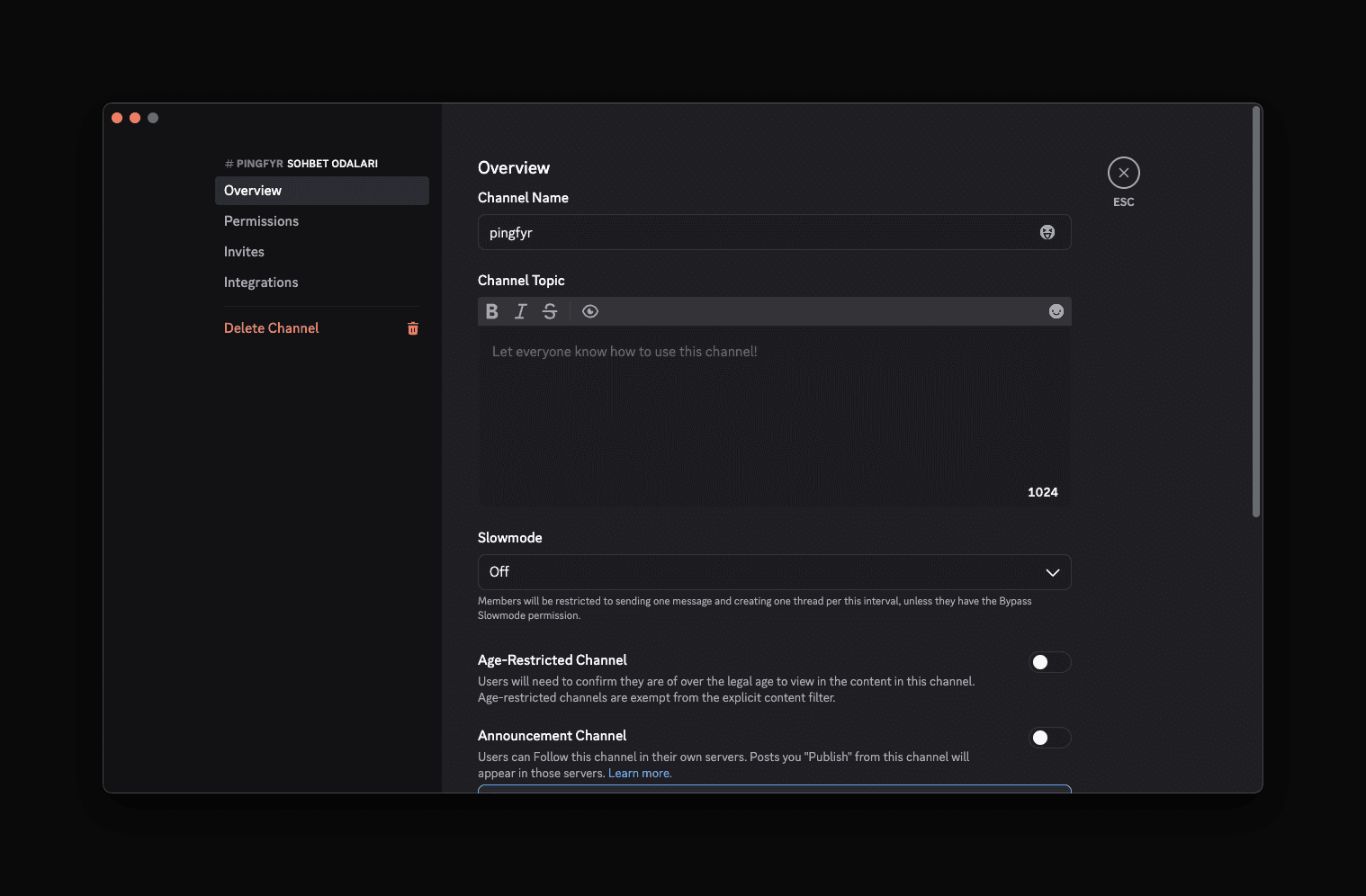
- 02In the left sidebar, click Integrations.
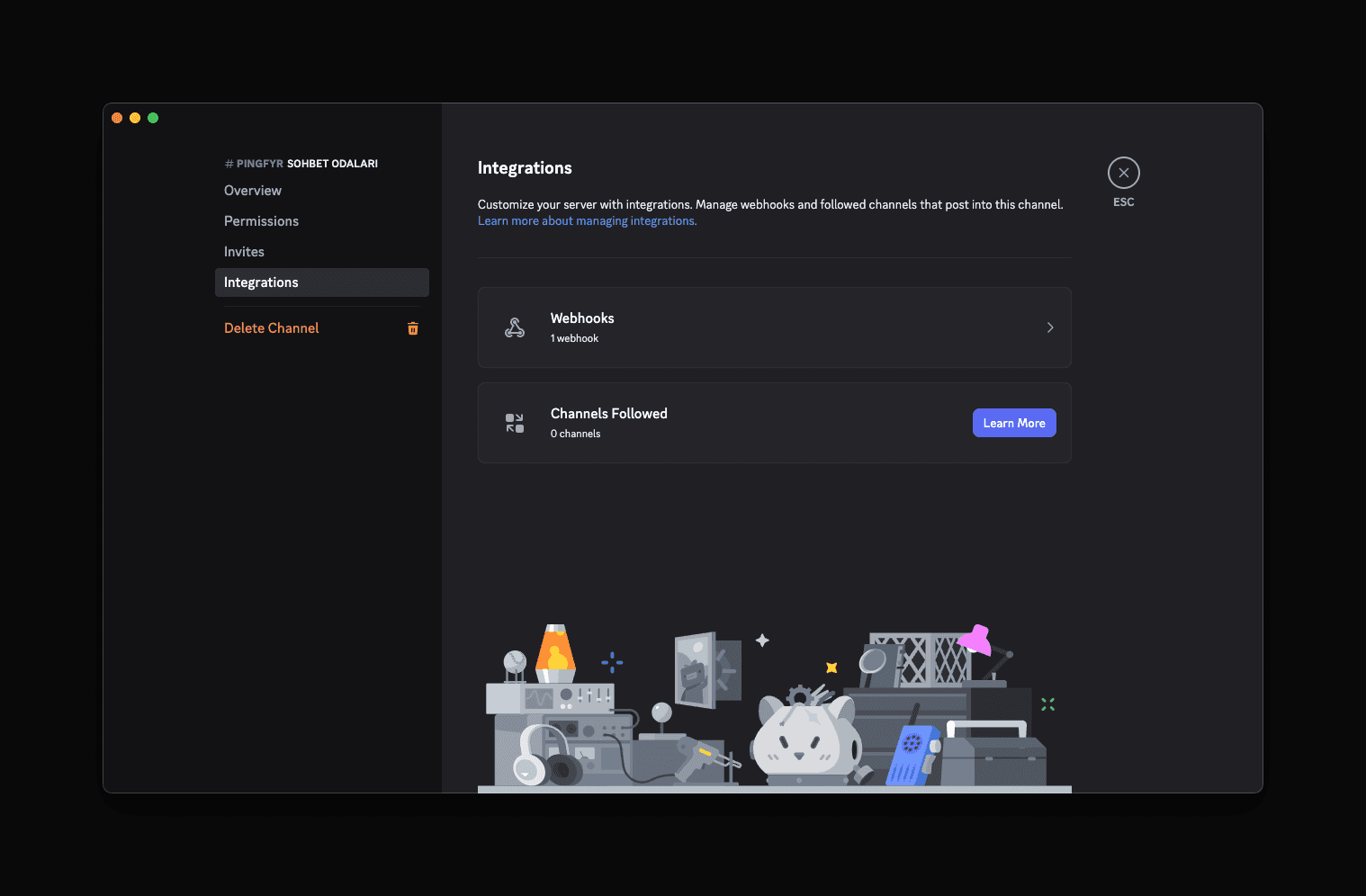
- 03Click Webhooks.
- 04Click New Webhook.
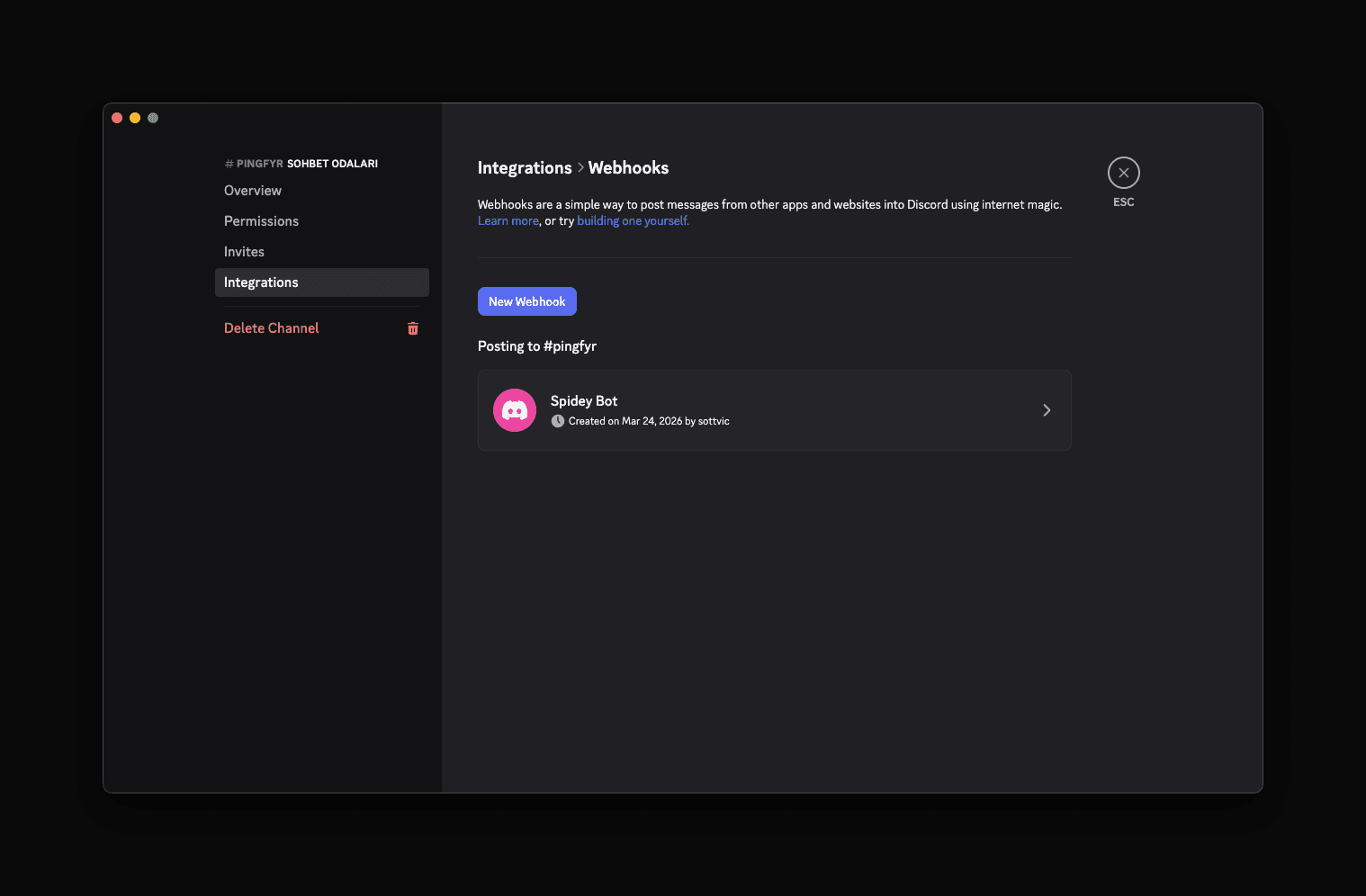
- 05Give the webhook a name and confirm the target channel.
- 06Click Copy Webhook URL — this copies the URL to your clipboard.
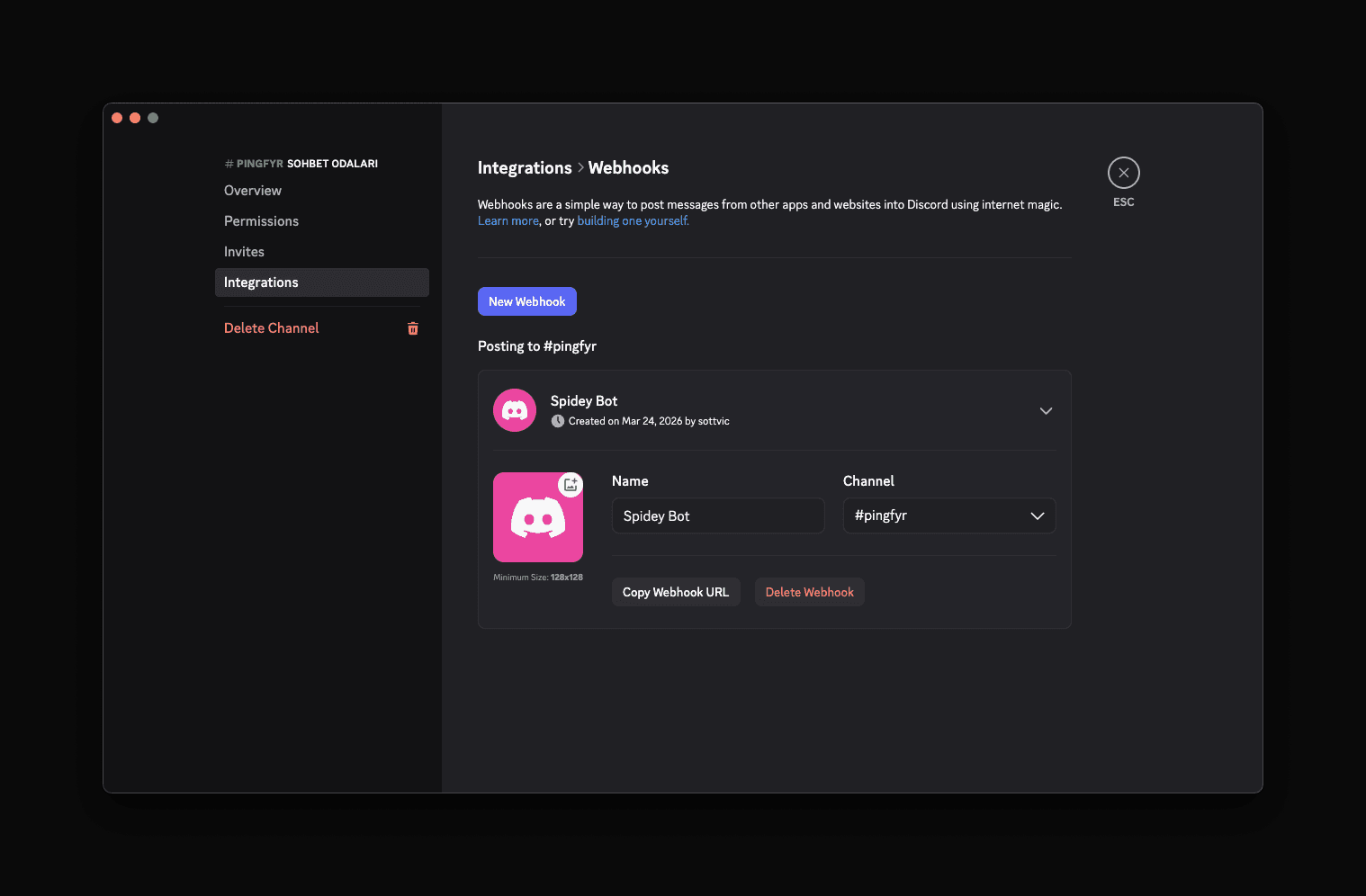
- 07Paste the URL into Pingfyr's recipient field when creating a Discord reminder.
The webhook URL will look like:
https://discord.com/api/webhooks/XXXXXXXXXX/YYYYYYY
All Discord webhook URLs start with https://discord.com/api/webhooks/.
Telegram
Send reminders to yourself or a group via Telegram. You'll need to create a bot with BotFather and add it to Pingfyr. Follow these steps:
- 01Open Telegram and search for @BotFather. Start a chat and send
/newbot. - 02Choose a display name for your bot (e.g. My Pingfyr Bot), then choose a username ending in
bot(e.g.mypingfyrreminder_bot). - 03BotFather will reply with a bot token — a string that looks like
1234567890:ABCdef.... Copy it. - 04In the Pingfyr dashboard, go to Settings › Telegram Bots and paste the token into the Add Bot form. Click Add.
- 05To get your Chat ID, open Telegram and send any message to your new bot (e.g. “hello”). Then open a browser and visit:
https://api.telegram.org/bot<YOUR_TOKEN>/getUpdates
Find the chat.id field in the JSON response — that is your Chat ID. It will be a number like 123456789. Alternatively, search for @userinfobot on Telegram and send it a message — it will reply with your Chat ID directly.
- 06When creating a reminder, select Telegram as the channel, choose your bot, and enter your Chat ID.
To send reminders to a group, add your bot to the group, then send a message in the group. Use the same getUpdates method above — the group Chat ID will appear as a negative number (e.g. -987654321).
Slack
Send reminders to any Slack channel using an Incoming Webhook URL. Follow these steps:
- 01Go to api.slack.com/apps and click Create New App › From scratch. Give it a name and select your workspace.
- 02In the left sidebar, click Incoming Webhooks and toggle it On.
- 03Scroll down and click Add New Webhook to Workspace. Choose the channel you want reminders posted to and click Allow.
- 04Copy the generated webhook URL — it looks like:
https://hooks.slack.com/services/<workspace-id>/<channel-id>/<token>
- 05When creating a reminder, select Slack as the channel and paste the webhook URL as the recipient.
Each webhook is tied to a single channel. To post to multiple channels, create a separate webhook per channel and add each URL as a recipient.
OpenClaw
Trigger an OpenClaw agent or wake endpoint on a schedule. OpenClaw is a self-hosted AI agent runtime. Pingfyr sends an authenticated HTTP request to your OpenClaw instance at the scheduled time.
- 01Make sure your OpenClaw instance is running and reachable from the internet (or from Pingfyr's servers). Note the base URL, e.g.
http://your-server:18789. - 02Obtain your OpenClaw Bearer token from your OpenClaw configuration. This is used to authenticate the incoming request.
- 03When creating a reminder, select OpenClaw as the channel and choose the endpoint type:
| Type | Endpoint | Use case |
|---|---|---|
| Agent | /hooks/agent | Trigger a full agent run |
| Wake | /hooks/wake | Wake a sleeping agent |
- 04Enter your OpenClaw base URL and Bearer token. Pingfyr will POST the reminder payload to
{baseUrl}/hooks/agentor{baseUrl}/hooks/wakewith anAuthorization: Bearer …header.
Google Calendar
Create Google Calendar events as reminders. Pingfyr uses OAuth to connect to your Google account — no API keys required. Events are added to your primary calendar.
- 01In the Pingfyr dashboard, go to Settings › Google Calendar and click Connect Google Account.
- 02Sign in with the Google account whose calendar you want to use. Grant Pingfyr permission to create and manage calendar events.
- 03Once connected, when creating a reminder select Google Calendar as the channel. The recipient field should be set to
google. - 04Pingfyr will create a calendar event at the scheduled time on your primary Google Calendar. The reminder's title and body become the event title and description.
Only one Google account can be connected per Pingfyr account. To switch accounts, disconnect the existing connection from Settings › Google Calendar and reconnect with the new account.
Note: Google Calendar is available on paid plans (Starter, Pro, Enterprise) only. When using the API or CLI, set the channel to google_calendar and the recipient to google.